

The 5 things I check when a WordPress site lands on my desk
A war-story WordPress site audit checklist from someone who fixes broken sites for a living. 5 things, in order, before anything else.
Last month a site landed on my desk with 47 plugin updates pending and no backup since 2024. The owner had called me at 11pm because his contact form had stopped collecting leads and he had no idea when. That was the easy part. The hard part was telling him that if anything had gone wrong in the next ten minutes, restoring his site would have meant rebuilding it from screenshots.
That call is not rare. It is roughly one in four sites that reaches me. The owner is a smart person running a real business, and the site has quietly drifted into a state where it is one bad update, one outdated plugin, or one ordinary brute-force attack away from being a problem the owner can no longer solve.
So here is the WordPress site audit checklist I actually run when a new site lands on my desk. Five checks, in order, before anything else. Not twelve. Not fifteen. Five. The shorter list is on purpose: these are the ones that decide whether the site is recoverable, and everything else can wait until they are sorted.
If you want to run them on your own site, the second half of each section tells you exactly how. If you would rather have someone do it monthly so you stop thinking about it, that is what our WordPress care offer covers, and we built it around exactly this list.
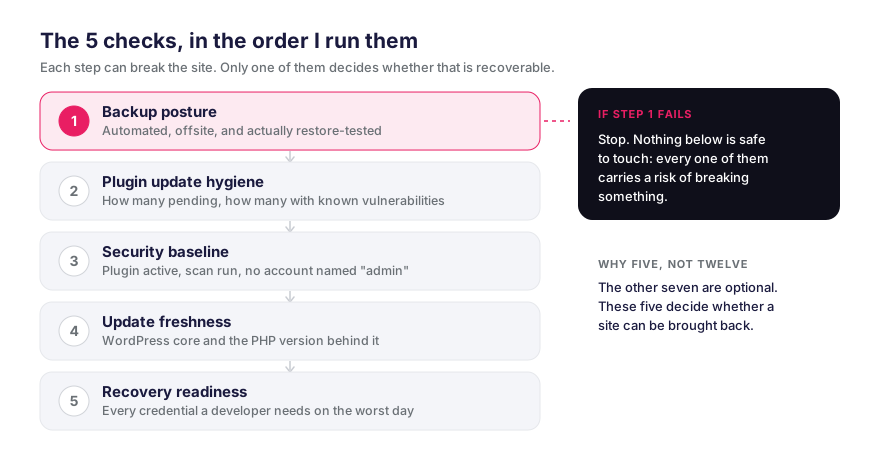
1. Backup posture (the only check that matters first)
I always start here, because nothing else is safe to touch if the answer is wrong.
Three questions:
- Are there automated backups running, daily and weekly?
- Where are those backups stored? On the same server as the site, or somewhere else?
- When was the last backup actually verified, meaning, when was the last time someone confirmed it would restore?
If a site has no backup, no offsite copy, or a backup that has never been tested, I do nothing else until that is fixed. The reason is simple: every other audit step (updates, security-plugin installation, PHP bump) carries a small risk of breaking something. Without a working backup, “small risk of breaking something” becomes “small risk of losing the site”.
Most owners think they have backups because their hosting provider says “we back up nightly” somewhere on a feature page. Hosting backups are real, but they can fail you in the exact scenarios where you need them most: when the hosting account itself is compromised, or when you need a backup older than the host’s retention window (usually 7 to 14 days, which is shorter than most people think).
How to fix it yourself: install an automated backup plugin, configure daily database + weekly full-site backups, send the copies to an external storage location (cloud storage you control, not the same server). Keep more than the last day or two: a rolling set of daily, weekly and monthly copies, so a problem that goes unnoticed for weeks still has a clean point to restore from. Then, once, restore a backup to a staging site to confirm it actually works. The restore drill is the part everyone skips.
The shortcut: monthly backup verification + pre-update backup checks are included in our Tier 1 WP care plan, alongside automated daily and weekly backups that we monitor for you.
2. Plugin update hygiene
Once the backup question is solved, I look at the plugin list. Not to update anything yet, just to count.
What I am counting:
- How many plugins are out of date?
- How many are flagged with known security vulnerabilities?
- When was the last plugin update window done on this site?
The site with 47 pending plugin updates I opened this article with was extreme but not unusual. The pattern I see most often is six to fifteen pending updates, accumulated over months because the owner is afraid to click the update button (correctly, by the way; they have been burned before).
About 60% of compromised WordPress sites I have audited got in through an outdated plugin with a publicly disclosed vulnerability. The vulnerability is published, the patch is released, but the site never installed the patch, and an automated script scans the internet for sites still running the unpatched version. That gap, between patch release and patch applied, is when the site is the most exposed.
How to fix it yourself: pick a monthly window. Before that window, take a fresh backup, and verify it. During the window, update plugins in small batches (not all at once), then check the homepage, the contact form, and any critical page after each batch. If something breaks, you know which batch broke it. Update WordPress core after plugins, not before. Repeat every month, same time, no exceptions.
3. Security baseline
Now I look at what is defending the site between maintenance windows.
What I am checking:
- Is a security plugin installed and actually active? (Installed and active are different things; I have seen plugins deactivated to “fix” a performance issue and never re-enabled.)
- When was the last malware scan, and what did it find?
- Are the admin accounts using strong passwords and two-factor authentication?
- Is anyone still logging in with the username “admin”?
The username “admin” alone is a giveaway. Every brute-force script tries it first. If your login page is reachable at /wp-login.php (the default), an admin account named “admin” with a weak password is being attacked roughly every few minutes by automated scripts that scan the internet looking for exactly that.
A security plugin will not save a site whose admin password is the owner’s first name and a birth year. It will catch and block the brute-force noise so the site does not become the easy target. That distinction matters: most sites are not hacked because they were specifically targeted; they are hacked because they are the unlocked door on the street where the burglar is walking.
How to fix it yourself: install a reputable security plugin, enable its firewall and brute-force protection features, and run a full malware scan as the baseline. Rename or delete any account literally called “admin”. Enforce strong passwords on every administrator account. Turn on two-factor authentication, at minimum on administrator accounts. None of this costs money; it costs an afternoon.
4. Update freshness (core and PHP, not just plugins)
Plugins get most of the attention, but two background versions matter just as much, and both are often years behind.
Three questions:
- Is WordPress core on the current major version?
- Is the PHP version on the hosting account still supported, meaning still getting security fixes from the PHP project?
- How many plugins on the site have not been updated by their author in the last 12 months?
PHP is the one most owners never look at, because nothing on the WordPress dashboard tells them about it loudly. PHP versions reach end-of-life on a schedule, and once they do, they stop getting security patches. A site running on an end-of-life PHP version is one hosting upgrade away from breaking entirely, because the next time the host migrates to a newer PHP version (and they will), plugins that worked yesterday will stop working. Usually the first sign is not a warning message but a white screen: a 500 Internal Server Error where the homepage used to be.
Abandoned plugins are the silent version of the same problem. If a plugin has not seen a release in 18 months, treat it as a question rather than a verdict: check its support forum, whether it still declares compatibility with current WordPress, and whether any vulnerability has been reported against it. Sometimes it is a small, finished tool that genuinely needs no changes. Often the author has moved on, and any vulnerability found from here on will never be patched. The plugin still works, the site still runs, and the door is quietly open.
How to fix it yourself: check the WordPress version on the dashboard. Check the PHP version through your hosting panel (every host shows it somewhere; if you cannot find it, the host’s support can tell you). For each plugin, look at the “last updated” date on its WordPress.org page; anything older than 12 months is a candidate to replace. Plan the PHP upgrade carefully (it requires testing because some plugins or themes will break), but plan it; do not let the host force it on you.
5. Recovery readiness (the panic-moment test)
This is the audit step almost no one runs, and the one that decides how bad the worst-case day will be.
Imagine the site is down right now. Not slow. Down. Maybe a hack, maybe a hosting outage, maybe a bad update. Answer these:
- Do you have access to the hosting panel? (Username, password, working URL.)
- Do you have access to the DNS panel? (Sometimes the same as hosting, often not.)
- Do you have access to the WordPress admin? (Even if the site itself is broken, the admin URL might still load.)
- Do you have a recent backup file you can actually hand to someone, or upload yourself, right now, in the next five minutes?
- If a developer needed to restore the site, how long would it take you to give them everything they need?
Most owners discover the answers to these questions during the panic moment. That is precisely the wrong time. The hosting password is in an email from four years ago, the DNS account is registered to a previous freelancer’s email, the backup is on a hard drive at the office, and the developer is waiting for you to find any of it while the site stays down.
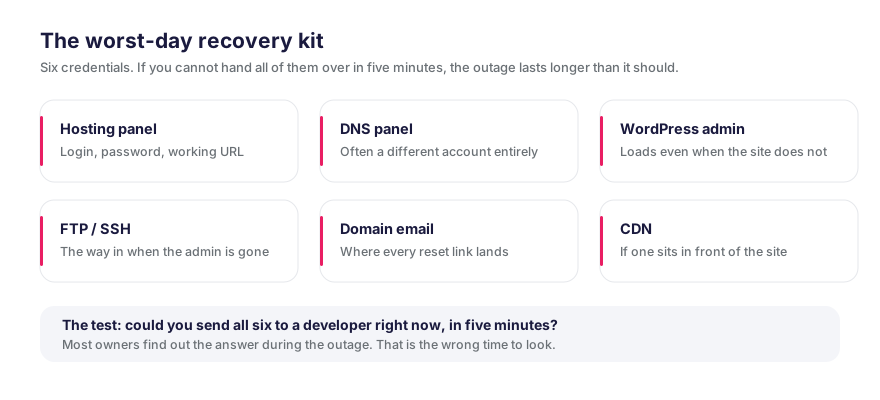
The fix is not glamorous. It is a single document, in a password manager you actually use, listing every credential and every link a developer would need on the worst day. Practice the restore once when nothing is on fire, so the muscle memory exists when something is.
How to fix it yourself: open a password manager today. Add entries for hosting, DNS, WordPress admin, FTP/SSH, domain email provider, and CDN if you have one. Test each credential by logging in. Once a year, simulate a restore: take your latest backup and restore it to a fresh staging environment. If you can do that in under an hour, you are ready.
The shortcut: our Tier 2 WP care plan includes a 4-hour priority emergency restore. The credentials part is still on you (we have to know what we are restoring to), but the restore mechanics are not something you should have to figure out at 9 pm on a Friday.
What I do after the 5 checks
If those five come back clean, the site is in good shape, and the rest of the work is performance, SEO, accessibility, the things that improve a site that is already safe. If even one of the five comes back bad, that is where the work starts, and nothing else moves until it is fixed. In that order, not the reverse.
The reason this list is five and not twelve is that the other seven are optional. These five are not. A site that fails any one of them is a site that, on the worst day, you cannot get back.
Sometimes the five checks come back bad because nobody was ever responsible for them. That is a maintenance problem, and the monthly care plans exist for it. Sometimes they come back bad because whoever built the site cut corners, which is a different problem with a different fix: if that sounds like your situation, the guide to choosing a web development subcontractor covers the questions worth asking before you hand the site to the next person. And if you are reading this on behalf of a client rather than your own business, that same logic is what our white-label work for agencies is built on: the checks happen whether or not the end client ever hears about them. You can see what that produces in our recent builds.
Either way, the part that matters is that the audit happens. The site that lands on my desk at 11pm is always the site whose audit got postponed.
FAQ
How often should I audit my WordPress site?
Once a month for the five checks in this article. Quarterly for the deeper work (performance, SEO, accessibility). Most maintenance failures I see happen on sites that have not been audited in six to twelve months.
Can I do a WordPress audit myself?
Yes, every check in this article is something a non-technical owner can do in an afternoon with the right plugins and a password manager. The harder part is doing it every month for years. That discipline is what most owners eventually outsource.
How long does a WordPress audit take?
The first one takes about two hours if you have never done it before, mostly because you are clicking around looking for things you have never looked at. After the first time, it is a 20-to-30-minute monthly habit.
What is the most common WordPress audit failure?
By a wide margin: no verified backup. People think they have backups (the host said so) until the day they need to restore from one. The second most common is plugin updates years behind, which is the door most hacks come through.
Do I need a security plugin if I have a strong password?
Yes, but neither replaces updating. A strong password blocks brute-force attacks on your login page. A security plugin with a properly configured firewall can also mitigate some attacks that bypass the login page, such as attempts against an unpatched plugin, but it does not reliably close those holes: only updating the vulnerable plugin does that. The two buy you time and cover different angles, and the patch is still the actual fix.
Can a WordPress audit prevent a site from being hacked?
No audit can guarantee a site will never be hacked. But the five-point audit in this article addresses the four most common attack paths I see in compromised sites (outdated plugins, abandoned plugins, weak admin credentials, and a login page left exposed with no firewall in front of it). Closing those four closes the door most attackers walk through.
What should I do if my WordPress site is already broken?
Stop changing things. The first move is to get a backup of whatever state the site is in right now, even broken, because the broken version contains evidence of how it broke. Then restore the most recent clean backup to a staging environment, not the live site. If the broken site is your business, that is the moment to call someone who does this for a living, not the moment to learn it yourself.
Related articles

How to update WordPress plugins safely (after the update that killed a checkout at 9pm on a Friday)
The monthly routine that keeps updates from breaking a checkout: verified backup, changelogs, small batches, and how to roll back when it breaks anyway.
Web development outsourcing for agencies: how to choose your white-label partner
Choose a white-label web development partner: the 3 models, 7 questions to vet a subcontractor, the traps to avoid, and real market prices.
How to change a text dynamically in WordPress using PHP?
A simple PHP filter snippet to replace any hardcoded text output on your WordPress site dynamically, without editing theme files. Drop into functions.php.