

How to update WordPress plugins safely (after the update that killed a checkout at 9pm on a Friday)
The monthly routine that keeps updates from breaking a checkout: verified backup, changelogs, small batches, and how to roll back when it breaks anyway.
The call came in at 9pm on a Friday. Nobody could check out on my client’s shop. Customers filled their carts, reached the payment step, clicked, and got a blank white screen. He had found out twenty minutes earlier from a regular who messaged him on Instagram asking whether the shop had closed for good. His last order had come in at 2:15pm.
Around 2pm, someone on his team had opened the WordPress dashboard, seen the little orange badge with a number on it, and clicked Update All. Fourteen plugins at once. Nobody looked at the site afterwards, and nobody had a reason to, because the homepage still looked perfect. It still looked perfect at 9pm too. A homepage almost never touches the code that processes a payment.
Seven hours of a Friday, one of his two busiest days, zero orders taken, on a site that looked completely healthy from the outside.
What follows is the routine I have run ever since, and that we run on every site we look after. There is nothing clever about it, and it is not fast. But updating WordPress plugins safely is a sequence, not a button, and this is the sequence.

Why “Update All” is the most expensive button on the dashboard
The button is well designed and does exactly what it says. The problem is what it hides: it collapses fourteen separate decisions into one, and it takes away the one thing you need on the day something goes wrong: which plugin moved.
Update one plugin, watch the site fall over, and you know why within seconds. Update fourteen, watch it fall over, and you have fourteen suspects, no record of what moved, and a client on the phone. That Friday, identifying the culprit took far longer than the repair, which took four minutes.
There is a second reason nobody warns you about. Nothing in WordPress tells you when an update is really a rewrite. Going from 4.9 to 5.0 can be a one-line bug fix or a rebuilt codebase that hooks into the cart in a completely different way. The dashboard shows you the same small blue link either way.
What gives way
Over the years, the failures I have seen have fallen into four families. Knowing which one you are looking at is most of the diagnosis.

One plugin against another. Two plugins work on the same thing, usually the cart, the checkout fields, or the payment gateway, and each is perfectly happy on its own. The new version of one changes what it hands to the other, and the other throws an error nobody sees, because error messages are hidden by default on a production site. This was the Friday failure.
A plugin against the theme. Common wherever the theme was edited directly instead of through a child theme. The plugin renames a function or replaces a template, the theme keeps calling the old one, and the page dies. This one at least announces itself immediately.
A plugin against PHP. Either the plugin now expects a newer PHP than the hosting account runs, or the reverse: an old plugin finally trips over the PHP your host upgraded last month. The classic symptom is a 500 Internal Server Error where a working page used to be.
A major version rewrite. The author rebuilt the plugin. Settings move, features disappear, the database structure changes. From the author’s point of view nothing is broken; from yours, everything is different. This is the one case where rolling back may not be enough, because the update may already have migrated your data on the way in.
The routine, step by step
Seven steps. On an ordinary site with a dozen plugins, budget forty minutes once a month, and most of that is waiting.
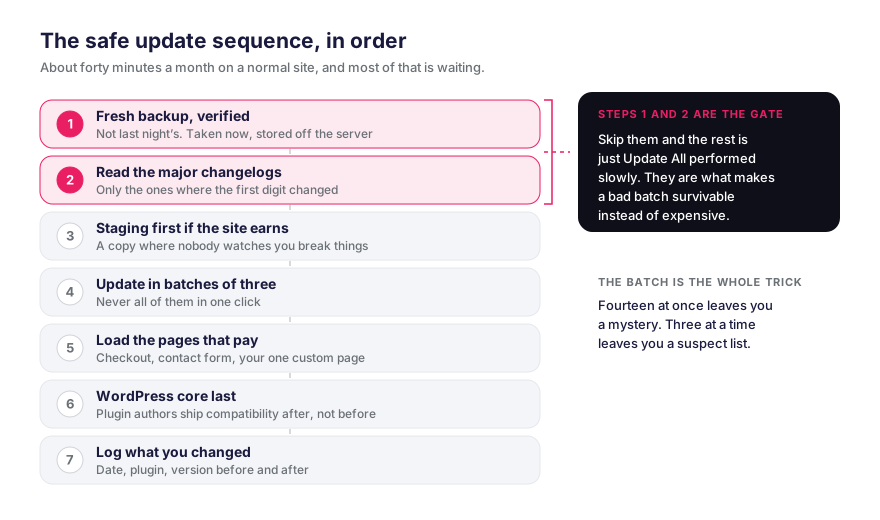
1. Take a backup today, and check it. Not last night’s automatic one. A new one, taken now, files and database, stored somewhere other than the site’s own server. Two things hide behind the word “verified”, and they are not the same job. Every month, confirm this backup actually finished and that the file really is sitting offsite, not that a plugin flashed a green tick. Less often, once a quarter is plenty, go further and restore a backup somewhere for real: a backup you have never restored is a promise, not a safety net. If you have never done that full restore even once, it is the first item on the audit checklist and it comes before any of this.
2. Read the changelogs, and not only the big version jumps. You do not read all fourteen. Start with the two or three where the first digit moved, or whose notes contain “breaking”, “removed”, “rewritten” or “requires PHP”. Then read the notes on anything that touches checkout, payments, logins, forms or the database, even a small version bump, because plugins do not all follow the same numbering and a breaking change can hide behind a minor-looking update. Five minutes. This is where you spot the rewrites before they land on you.
3. Use a staging copy if the site makes money. Staging is a copy of the site, live at a different address, where you can break anything without witnesses. Most decent hosts now spin one up in two clicks. If your site takes payments, bookings, or enquiries that matter, this step is not optional.
4. Work in batches of three or four, never the whole list at once. Group them loosely: anything touching sales together, anything touching forms together, the small utilities together. One batch, then step 5, and only then the next batch.
5. After every batch, open the three things that matter. Not the homepage, which lies. Open the ones where money and enquiries actually arrive: a checkout with a real product in the cart, the contact form with a real submission, and whatever custom feature your site depends on. A few minutes each, not a glance. If a batch broke something, you now have three or four suspects instead of fourteen.
6. WordPress core last, not first, unless a plugin demands otherwise. Plugin authors only make their work compatible with a new core release in the weeks after it ships, so starting with core usually means moving before your plugins have caught up. The exception is a plugin that already requires the newer core: that one goes after core, not before it. Check what each update says it needs, and test the order on staging before you trust it.
7. Write down what you did. Date, plugins touched, versions before and after, and anything that looked odd. A text file is enough. The value shows up three weeks later, when something is subtly wrong and the only question that matters becomes: what changed?
When it breaks anyway
It will, eventually. The routine does not make failure impossible. It makes it cheap. Here is the order to work in, and it matters as much as the order above.
Stop updating. Whatever batch you were in, stop. Do not push on to the next one hoping it clears itself up.
Deactivate, do not delete. If you know which batch it was, deactivate those plugins one at a time, reloading the broken page after each. The site comes back on one of them, and there is your culprit.
Roll back that one plugin only. Older versions of plugins in the official directory stay publicly downloadable, so a rollback means swapping the old files back in, not deleting the plugin and starting over. Leave the rest of the site alone. A full restore would wipe every order, comment and form submission received since the backup, which on a busy Friday is the second disaster of the evening.
Restore the whole backup only if the site is unusable and you still cannot find the cause after fifteen minutes. That is what step 1 is for, and it really is the last resort.
Then decide what to do with the frozen plugin. It is now stuck on an old version, which is a risk in itself, particularly if the update contained a security patch. Three options: wait for the author’s next release, find a replacement, or pay someone to make the new version work with your setup. Frozen and then forgotten is exactly how a plugin becomes the way in six months later.
Why batch size is the whole thing
The backup is not the part people get wrong. Everyone already knows they should have one. It is the batching.
Batching is what preserves the link between cause and effect. Fourteen at once and you have a mystery on your hands. Three at a time and you have a suspect list short enough to work through before the client on the phone hangs up.
It is also why the honest answer to “how long does this take” is the one nobody wants: longer than pressing a button. Forty minutes a month against seven hours of dead checkout is not a close call, but you only see that once you have lived through the seven hours yourself.
The site that goes down on a Friday evening is almost never the one nobody maintains. It is the one somebody maintains in a hurry, on the way out of the office, with a single button.
Who owns it, and on what day
The last piece is not technical. Somebody has to be named, personally, as the owner of the monthly slot, with a date attached. Sites that break during updates are almost always sites where updating falls to whoever noticed the badge, at the moment they noticed it. Which is how you end up at 2pm on a Friday, with the weekend right behind it.

Pick a day, and not Friday. Tuesday or Wednesday morning, when your own team is around, when your host’s support is staffed, and when you still have three working days ahead of you if something needs a second pass. Put it in a calendar with a name against it.
If the honest answer is that nobody in your business will own it, then outsource it. That is what our WordPress care plans are for: the slot happens on a fixed date whether anyone remembers it or not. Agencies whose clients should never hear the word maintenance hand the slot to us under white label.
FAQ
Should I turn on automatic plugin updates?
For small utilities with no bearing on sales or enquiries, yes: automatic updates close security holes faster than a monthly slot ever will. For anything touching checkout, payments, forms, bookings or member accounts, no. Those need doing by hand, in small batches, with a page reload after each one.
How often should plugins be updated?
Once a month for the full slot, and immediately for any plugin with a published security vulnerability. A security patch does not wait for your calendar. Everything else does.
Can a plugin update be rolled back?
Yes. Older versions of plugins in the official directory stay downloadable, so a rollback means putting the previous version’s files back, usually with a rollback plugin or over FTP. Do not just hit “Delete” in the dashboard to get there: deleting a plugin can run its own cleanup routine and wipe the data it stored. Deactivate, then replace the files. The one exception is a major version that migrated your database on install. Putting the old code back does not necessarily put the old data back, which is exactly why step 1 insists on a backup taken that day.
Why did my site break after an update when everything looked fine?
Because the page you checked is almost never the page that gave way. A homepage is simple and barely touches the code that runs a checkout, a form handler or a member area. Checking only the homepage after an update tests the part of the site least likely to be affected.
Do I really need staging?
If the site earns money or collects enquiries that matter, yes. For a five-page brochure site with a contact form, a verified backup and small batches will carry you comfortably. The rule of thumb: if one broken day costs more than a year of staging, you already have your answer.
What about a plugin the author has not updated in two years?
Then the question is no longer whether to update it. It is what to replace it with. An abandoned plugin will never receive a security patch, so it is a debt quietly growing on your site. Plan the swap while everything is healthy, not in the middle of an incident.
Can WordPress core and plugins be updated on the same day?
Yes, as long as the plugins go first and core goes last, with a page check between the two. What is not sensible is firing both off at once, in a single click, and then learning from a customer what you should have seen yourself.
Related articles

Web development outsourcing for agencies: how to choose your white-label partner
Choose a white-label web development partner: the 3 models, 7 questions to vet a subcontractor, the traps to avoid, and real market prices.
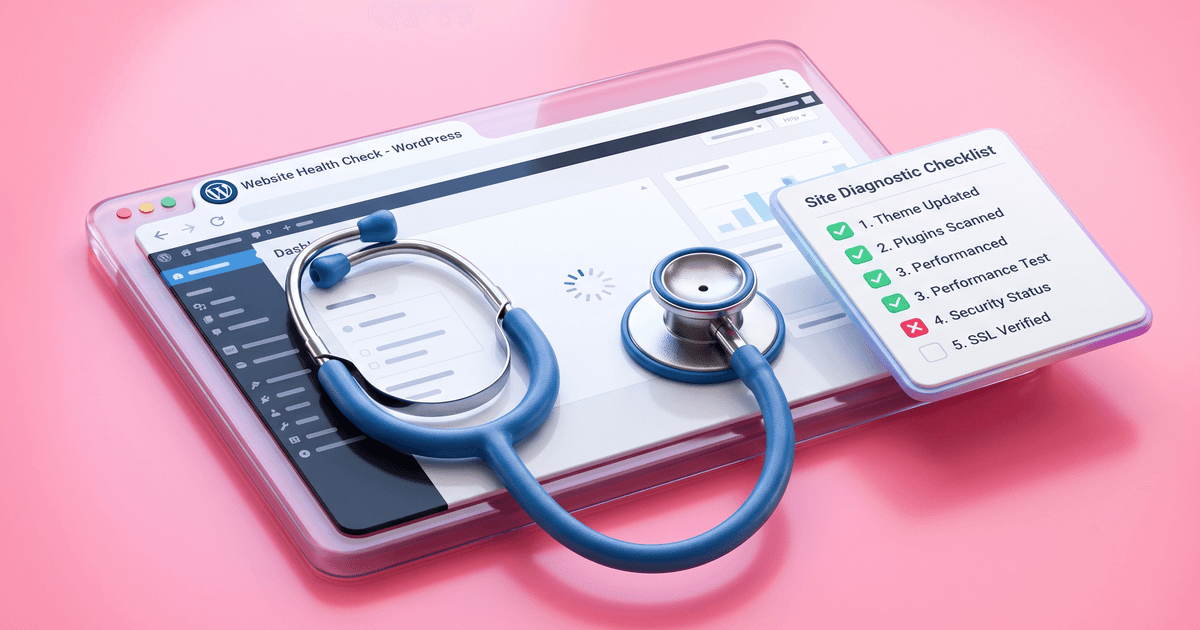
The 5 things I check when a WordPress site lands on my desk
A war-story WordPress site audit checklist from someone who fixes broken sites for a living. 5 things, in order, before anything else.
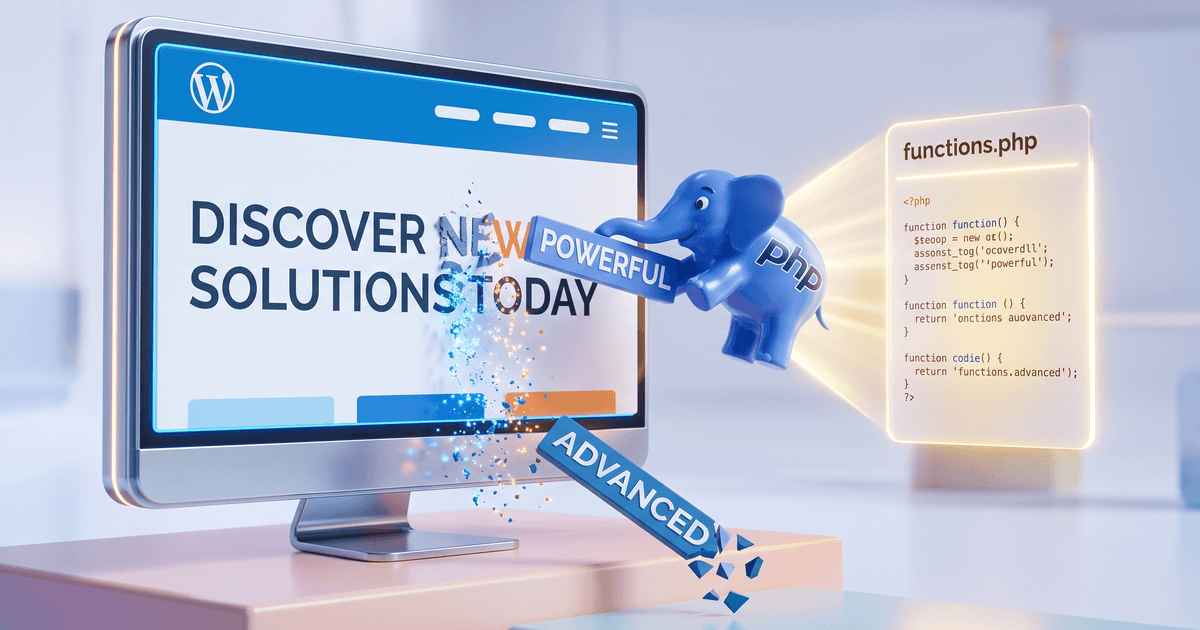
How to change a text dynamically in WordPress using PHP?
A simple PHP filter snippet to replace any hardcoded text output on your WordPress site dynamically, without editing theme files. Drop into functions.php.